Delegation
When someone else needs to take action on a task, you can delegate it. The task stays in your system—you're not forgetting about it, you're tracking it. Delegated tasks live in a dedicated "Waiting on Others" view so you can follow up at the right time.
You're still accountable
Delegating doesn't mean forgetting. It means staying on top of work you've handed off.
When to Delegate
Delegate a task when:
- Someone else needs to take action — They're doing the work, not you
- You're waiting on input or a deliverable — You need something from them to continue
- You're managing assigned work — Tracking tasks you've given to team members
Example: You need your accountant to send Q4 financial reports. Create the task "Send Q4 reports," delegate to @Accountant, and set a 2-week follow-up. The task stays on your radar.
How to Delegate
- Open the task
- Click the Delegate field
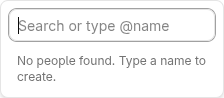
- Select an existing person or type a new name
- Set a follow-up date when prompted
The Follow-Up Prompt
After delegating, you'll see: "Set follow-up date?"
| Option | When it resurfaces |
|---|---|
| 1 week | 7 days from now |
| 2 weeks | 14 days from now |
| 1 month | 30 days from now |
| Skip | Never (not recommended) |
Always set a follow-up
Tasks without follow-up dates can slip through the cracks. When in doubt, set a 2-week check-in.
If you set a follow-up date, the task becomes deferred and resurfaces on that date. If you skip, the task stays in "Waiting on Others" but won't remind you automatically—so setting a follow-up is recommended.
Waiting on Others View
All delegated tasks appear in the Waiting on Others view under Tactical. Here you can:
- See all delegated tasks at a glance
- Filter by person to focus on specific people
- Check what's outstanding before meetings or check-ins
Use the person filter to see only tasks delegated to a specific person—helpful for preparing one-on-ones or status updates.
Following Up
When a delegated task resurfaces on its follow-up date, you have options:
| Action | When to use |
|---|---|
| Complete it | The person delivered—task is done |
| Extend follow-up | Need more time, set a new date |
| Take it back | You'll do it yourself now |
| Add notes | Record the status for next time |
Don't let follow-ups pile up. Quick decisions keep your system clean.
Managing People
People in LifeGrid are created as @tags (like @Sarah or @Vendor). This makes them easy to reuse and filter.
Creating a New Person
When you type a name that doesn't exist, LifeGrid creates a new person tag automatically. The @ symbol is added for you.
| You type | Tag created |
|---|---|
| Sarah | @Sarah |
| Accountant | @Accountant |
| Alex from design | @Alex from design |
Person Tag Tips
- Use roles for external contacts: @Accountant, @Landlord, @Dentist
- Use names for team members: @Sarah, @Mike, @Priya
- Be consistent: Pick one format and stick with it
- One person per tag: Don't create @Team unless you want tasks for the whole team
Best Practices
Check Weekly
During your weekly review, go through "Waiting on Others":
- What's still pending?
- Who needs a nudge?
- Anything overdue?
Clear Completed Items Promptly
When someone delivers, mark the task done immediately. This keeps your delegated list accurate and focused on what's actually outstanding.
Be Specific
Good delegated tasks are clear about what you're waiting for:
| Vague | Specific |
|---|---|
| "Website stuff" | "Send homepage copy draft" |
| "Budget" | "Approve Q1 marketing budget" |
| "Meeting notes" | "Share notes from Monday standup" |
Use Notes for Context
Add notes to delegated tasks so Future You remembers the context:
- When you made the request
- What they said last time
- Any relevant details
Common Patterns
The Handoff
You're doing a task, then realize someone else should finish it:
- Update the task title to reflect what's needed
- Delegate to the right person
- Set a follow-up date
- Move on
The Request
You need something from someone:
- Create a task describing what you need
- Delegate to them
- Set follow-up based on urgency
- Optionally, send them a message about it
The Tracking Task
You've asked for something verbally or via email:
- Create a task so you don't forget
- Delegate to track who owes you
- Follow up if you don't hear back