AI Integration
Connect LifeGrid to AI assistants like Claude using the Model Context Protocol (MCP). Once connected, you can manage your tasks, plan your week, and track habits through natural conversation.
What you can do
Ask Claude "What's on my plate today?" and get a real answer from your actual task list. Say "Help me plan my week" and have AI assist with prioritization. Create tasks, log habits, and review projects—all through conversation.
How It Works
MCP (Model Context Protocol) is an open standard that lets AI assistants securely connect to external tools. LifeGrid provides an MCP server that gives Claude read and write access to your data—with your explicit permission.
When you ask Claude about your tasks, it calls LifeGrid's API, gets your real data, and responds with actual information rather than generic advice.
Supported Clients
LifeGrid works with:
- Claude Desktop — Anthropic's desktop app for macOS and Windows
- Claude Code — Claude's CLI for developers
- Any MCP-compatible client — Via our HTTP endpoint
Setup
There are two ways to connect LifeGrid to your AI client:
| Method | Best For | Requirements |
|---|---|---|
| Direct HTTP | Claude Code, custom integrations | Just a URL and API key |
| MCP Bridge | Claude Desktop | Node.js, npm install |
Which should I choose?
Use Direct HTTP if you're using Claude Code or want the simplest setup—no packages to install. Use the MCP Bridge if you're using Claude Desktop or need offline fallback capabilities.
Step 1: Generate an API Key
Navigate to Account → API Keys in LifeGrid.
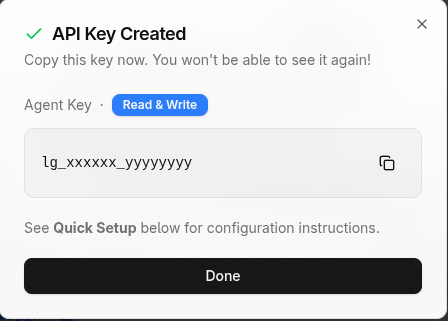
Click Create API Key and give it a name (e.g., "Claude Desktop"). Select a permission scope:
| Scope | Access |
|---|---|
| Read | View tasks, projects, habits, and goals |
| Write | Read access plus create, update, and complete items |
| Admin | Full access including permanent deletion |
Recommended scope
Write is the best choice for most users. It lets Claude help you manage tasks without the risk of accidental deletions.
Copy the token immediately—you won't be able to see it again. It looks like:
lg_dXNlcjEyMw_7d6eea42c1e1f1a83b2997db5affcff6de68a2bf1179bd638beafe5ea76334d1
Keep your token secret
Your API key grants access to your LifeGrid account. Don't commit it to version control or share it publicly.
Step 2a: Direct HTTP Setup (Recommended)
This is the simplest way to connect—no packages to install.
Claude Code
Add to your Claude Code config at ~/.claude.json:
{
  "mcpServers": {
    "lifegrid": {
      "type": "http",
      "url": "https://lifegrid.do/api/mcp-rpc",
      "headers": {
        "Authorization": "Bearer lg_your_token_here"
      }
    }
  }
}
Run /mcp in Claude Code to verify the connection.
Other MCP Clients
Any MCP client that supports HTTP transport can connect using:
- URL:
https://lifegrid.do/api/mcp-rpc - Authorization:
Bearer lg_your_token_here
Step 2b: MCP Bridge Setup (Alternative)
If you're using Claude Desktop or prefer a local bridge:
Install the LifeGrid MCP bridge globally:
npm install -g @lifegrid/mcp-bridge
Create the credentials file at ~/.lifegrid/credentials.json:
{
  "api_key": "lg_your_token_here",
  "api_url": "https://lifegrid.do"
}
Claude Desktop
Edit your Claude Desktop config file:
- macOS:
~/Library/Application Support/Claude/claude_desktop_config.json - Windows:
%APPDATA%\Claude\claude_desktop_config.json
Add the LifeGrid server:
{
  "mcpServers": {
    "lifegrid": {
      "command": "lifegrid-mcp",
      "args": []
    }
  }
}
Restart Claude Desktop to load the new configuration.
What You Can Do
Once connected, Claude has access to these capabilities:
Daily Planning
| Tool | Description |
|---|---|
get_overview | See today's tasks, inbox, habits, and active projects |
get_inbox | View unprocessed items in your inbox |
get_queue | See your full work queue ordered by priority |
Try asking: "What's on my plate today?" or "What do I need to deal with in my inbox?"
Weekly Planning
| Tool | Description |
|---|---|
get_planning_context | Full context for weekly planning: tasks, projects, habits, OKRs |
plan_task | Schedule a task for a specific day or week |
defer_task | Push a task to a future date |
Try asking: "Help me plan my week" or "Move task 42 to next week"
Task Management
| Tool | Description |
|---|---|
create_task | Add a new task |
update_task | Change a task's title, priority, or other properties |
complete_task | Mark a task as done |
Try asking: "Create a task to review the quarterly report" or "Mark task 15 as complete"
Habits
| Tool | Description |
|---|---|
list_habits | See all active habits with streaks and completion rates |
log_habit | Record a habit completion |
get_habit_stats | Detailed statistics for a specific habit |
Try asking: "Log my morning workout" or "How am I doing on my meditation habit?"
Projects & Strategy
| Tool | Description |
|---|---|
list_projects | See all active projects |
get_project | View a project's tasks and status |
get_strategic_overview | See OKRs and key results by life area |
list_objectives | View all objectives with progress |
Try asking: "Show me my active projects" or "How am I progressing on my Q1 goals?"
Example Conversations
Here are some ways to use AI with LifeGrid:
Morning Check-in
You: What's on my plate today?
Claude: You have 3 tasks planned for today:
- Review enterprise proposal (P0, Company)
- Call accountant re: SEP-IRA (P1, Wealth)
- Help Emma with science project (P1, Family)
You also have 5 items in your inbox to process.
Weekly Planning Session
You: Help me plan my week. I want to make progress on the enterprise launch.
Claude: Looking at your week... You have 4 tasks already scheduled. For the enterprise launch project, there are 3 available tasks:
- Add SSO/SAML authentication (P2, HIGH energy)
- Create enterprise sales deck (P1)
- Set up annual billing in Stripe (P1)
The SSO task is marked as a next action. Want me to schedule it for a specific day this week?
Quick Task Creation
You: Create a task to follow up with Sarah about the partnership proposal. Make it high priority and put it in the Company life area.
Claude: Created task "Follow up with Sarah about the partnership proposal" with priority P1 in Company.
Troubleshooting
"Invalid or revoked API key"
Your API key isn't being recognized. Check that:
- The token is correct and complete
- You haven't revoked the key in LifeGrid settings
- The URL is set correctly (
https://lifegrid.do/api/mcp-rpcfor direct HTTP)
"Connection refused" or timeout errors
The connection can't reach LifeGrid. Verify:
- You have internet connectivity
- The URL is correct
- LifeGrid isn't experiencing downtime
Claude doesn't see LifeGrid tools
The MCP server isn't loading. Try:
- Check your config file syntax (must be valid JSON)
- Restart Claude Desktop / run
/mcpin Claude Code - For MCP Bridge: run
lifegrid-mcp --helpto verify installation
Testing the Connection
You can test the API directly:
# Direct HTTP endpoint (JSON-RPC 2.0)
curl -X POST https://lifegrid.do/api/mcp-rpc \
  -H "Authorization: Bearer YOUR_TOKEN" \
  -H "Content-Type: application/json" \
  -d '{"jsonrpc":"2.0","id":1,"method":"tools/list"}'
A successful response returns the list of available tools. An error response indicates the issue.
Security
- API keys are hashed before storage—LifeGrid never stores your raw token
- All API communication uses HTTPS
- You can revoke keys instantly from Account → API Keys
- Each key shows its last usage time for auditing
Revoking access
If you suspect a key is compromised, revoke it immediately in Account → API Keys. Create a new key and update your config.
What's Next
Now that you're connected, explore these guides:
Daily Planning — Learn how to structure your days effectively.
Weekly Planning — Master the weekly planning session that makes everything work.
Habits — Build streaks and track consistency with habit tracking.