Deferred Tasks
Sometimes a task isn't ready to be worked on—maybe you're waiting for information, or it just isn't the right time. Deferring lets you "snooze" tasks until you're ready to deal with them. They disappear from your queue and resurface automatically on the date you choose.
Not avoidance
Deferring is strategic. It's about working on the right things at the right time, not pushing things off forever.
When to Defer
Defer a task when:
- It's not actionable yet — You're waiting for an event, information, or a specific date
- You want to reduce mental clutter — Hide future work so you can focus on today
- It's "not now, but not never" — You'll do it, just not yet
Example: You get invited to a conference in March. Create the task "Book hotel for TechConf" and defer it to February 15th. It'll pop back up when it's time to book.
How to Defer a Task
- Open any task
- Click the Defer field
- Choose a quick option or pick a specific date
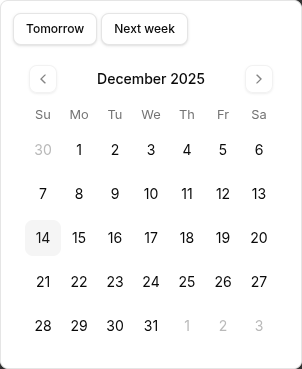
Quick Options
| Option | When it resurfaces |
|---|---|
| Tomorrow | The next morning |
| Next Week | During your next weekly planning |
| Custom date | On that specific date |
When the defer date arrives, the task automatically moves back to your queue—no action required on your part.
Where Deferred Tasks Live
Access the Deferred view in the Tactical section to see all your snoozed items. They're organized by when they'll come back:
- Today — Returning today
- Tomorrow — Coming back tomorrow
- This Week — Due this week
- Next Week — Due next week
- Later — Further out
This gives you a bird's-eye view of what's coming up, so nothing catches you off guard.
When Tasks Come Back
On the defer date, tasks automatically move back into your queue. When they return, you can:
- Plan them for today or this week
- Complete them if they're quick
- Re-defer if the timing still isn't right
Tasks keep their original context—project, tags, notes—so you can pick up right where you left off.
Best Practices
Use It Strategically
Deferring works best for genuinely future work:
| Good reasons to defer | Signs you should drop it |
|---|---|
| Waiting for a date or event | You've deferred it 3+ times |
| Depends on someone else finishing first | You dread seeing it come back |
| Needs information you don't have yet | It's been deferred for months |
Defer vs. Delete
If you keep re-deferring the same task, ask yourself: is this actually important? Sometimes the right answer is to drop it entirely.
Review During Weekly Planning
Make it a habit to glance at your Deferred view during your weekly review. Check:
- What's coming back this week?
- Do any defer dates need adjusting?
- Should anything be un-deferred and tackled now?
Pair with Delegation
Deferral works hand-in-hand with delegation. When you hand off a task to someone else, defer it with a follow-up date so you remember to check on progress.
Keyboard Shortcuts
| Shortcut | Action |
|---|---|
e | Edit task (opens defer option) |
d | Mark task done |